 OnlyList
Reminders app
Remember the right thing at the right time.
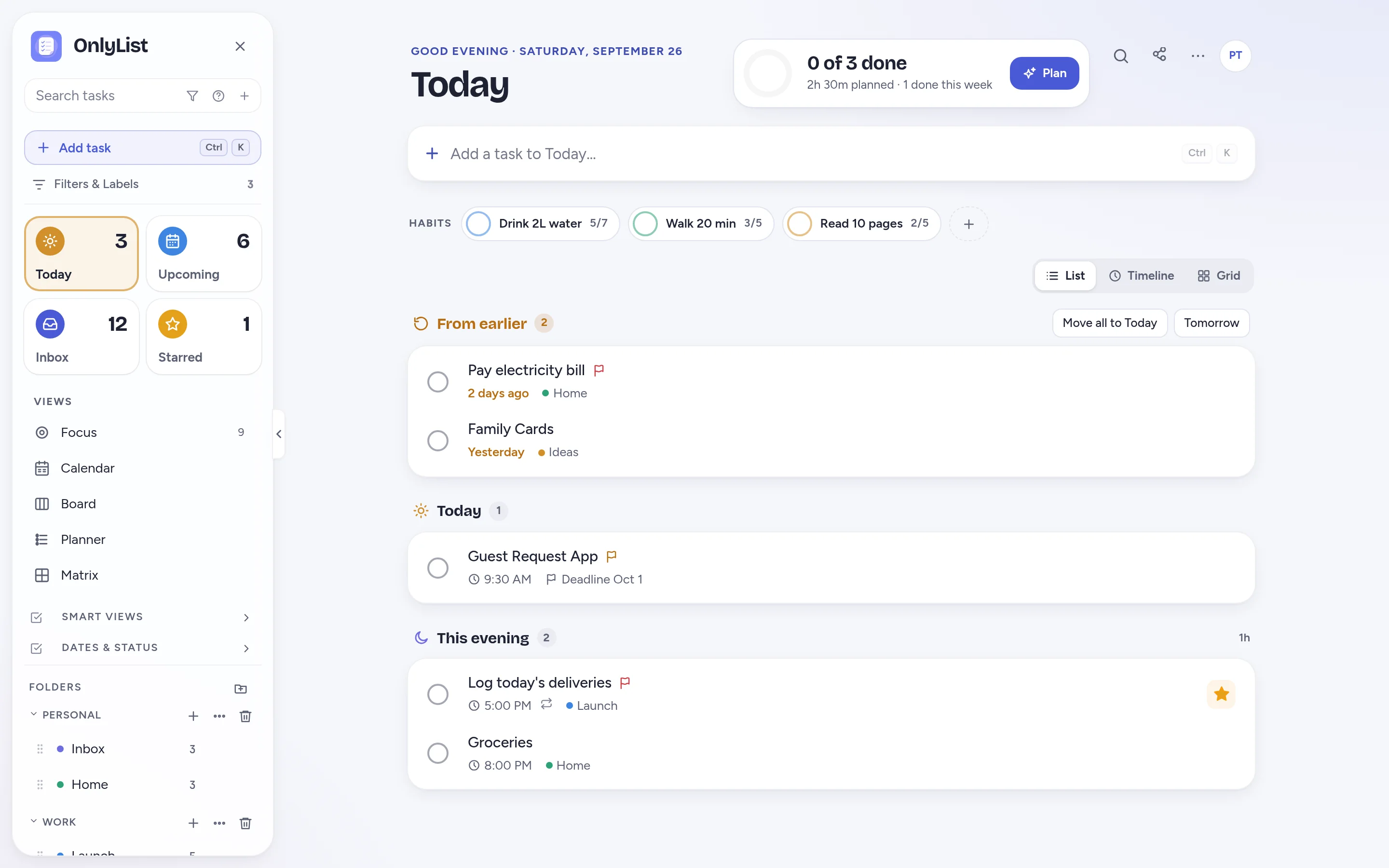
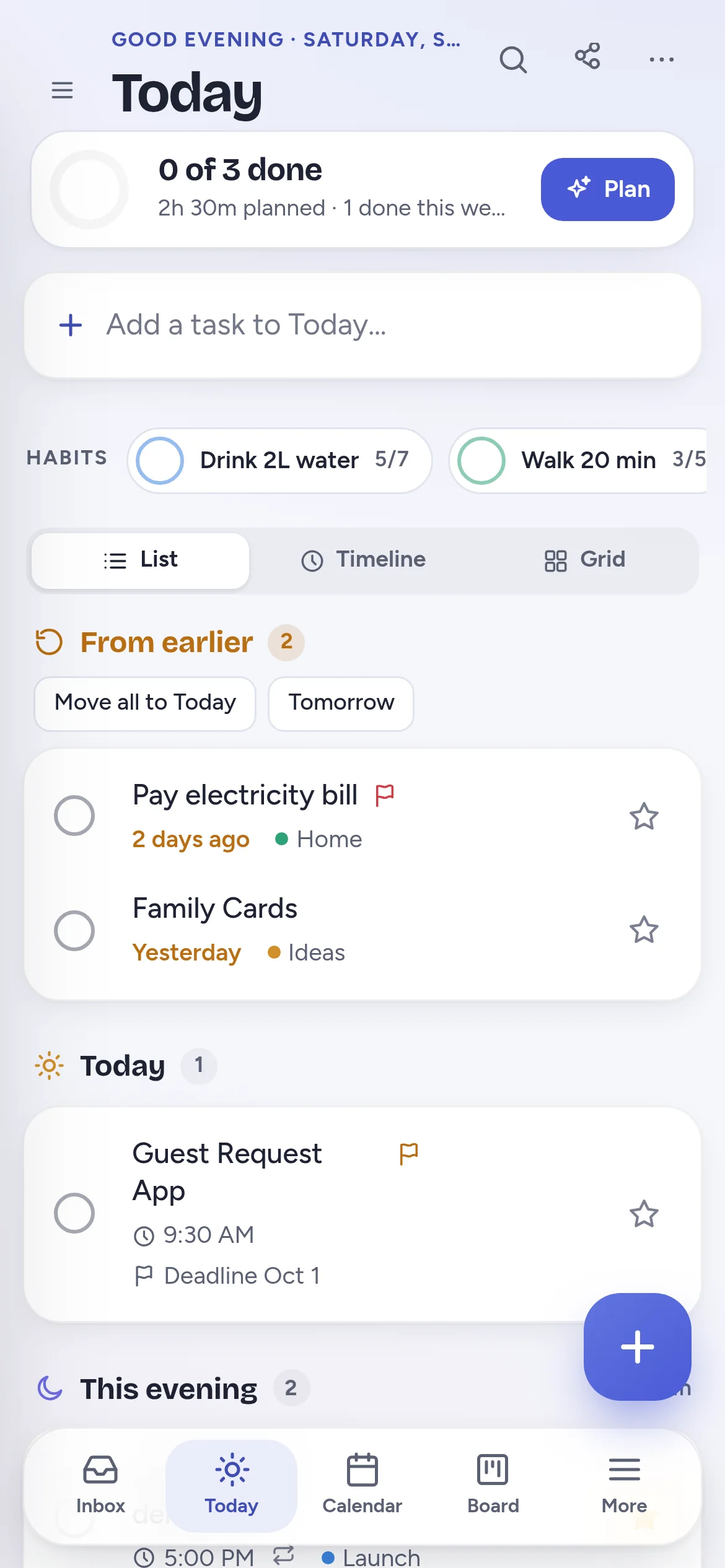
Reminders ring on your phone or computer even when OnlyList is closed. Finish or snooze straight from the notification, and let the important ones nag until they're done.
Reminder times
Ring at the moment that's useful.
Pick when a reminder should reach you, not just when the task is due.
- At the time, 15 minutes before, or an hour before.
- The morning of, or the day before.
- Keep reminding until done nudges again every 10 minutes for the must-not-miss ones.
Snooze
Not now? Snooze it, don't lose it.
Snooze a task to later today, this evening, tomorrow or next week. From a notification, snooze for an hour or until tomorrow. Snoozed tasks step out of the way and come back on time.
- Finish a task right from the notification.
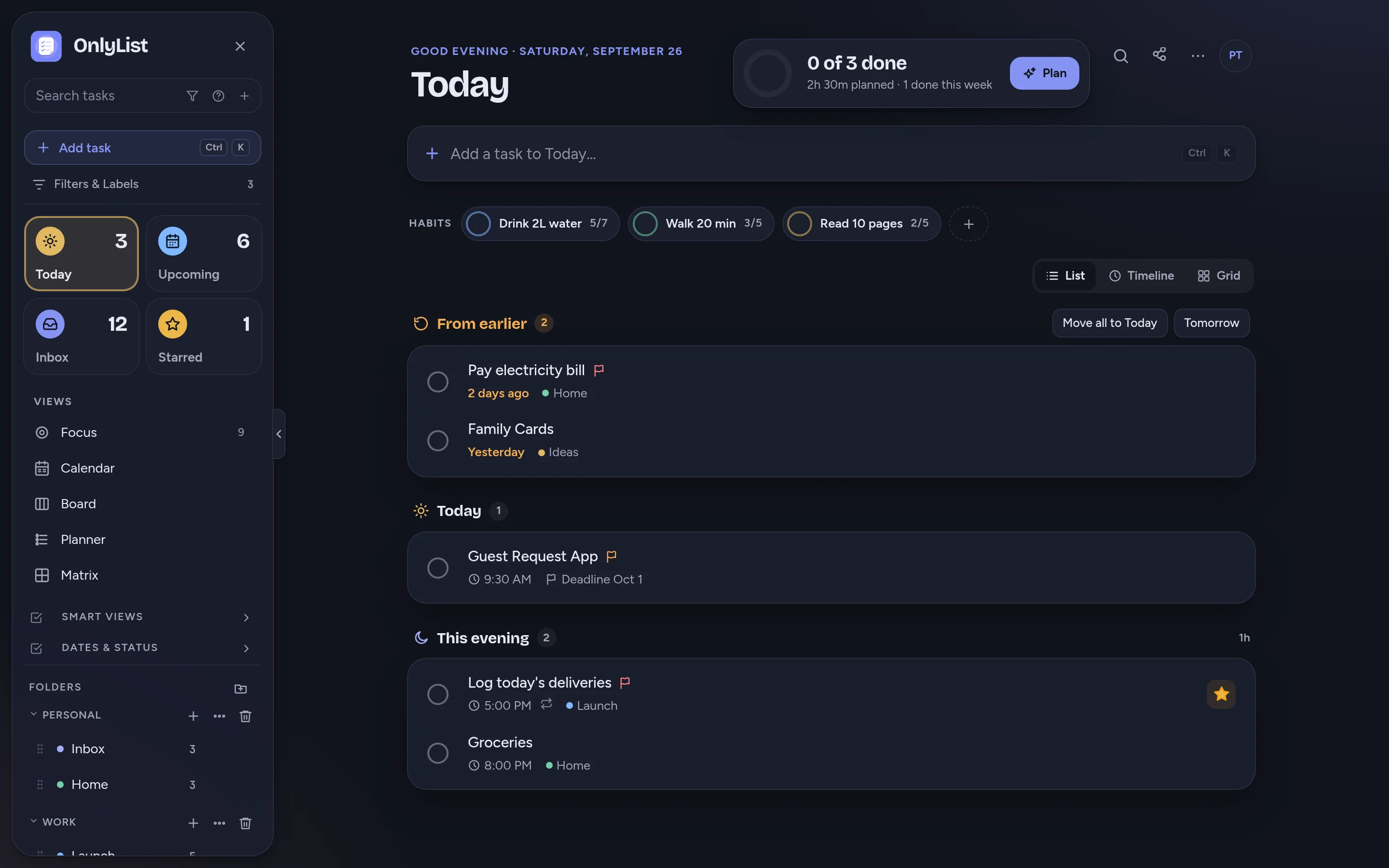
- Missed tasks wait in From earlier instead of piling up in red.
Repeats
Set it once. Let it come back politely.
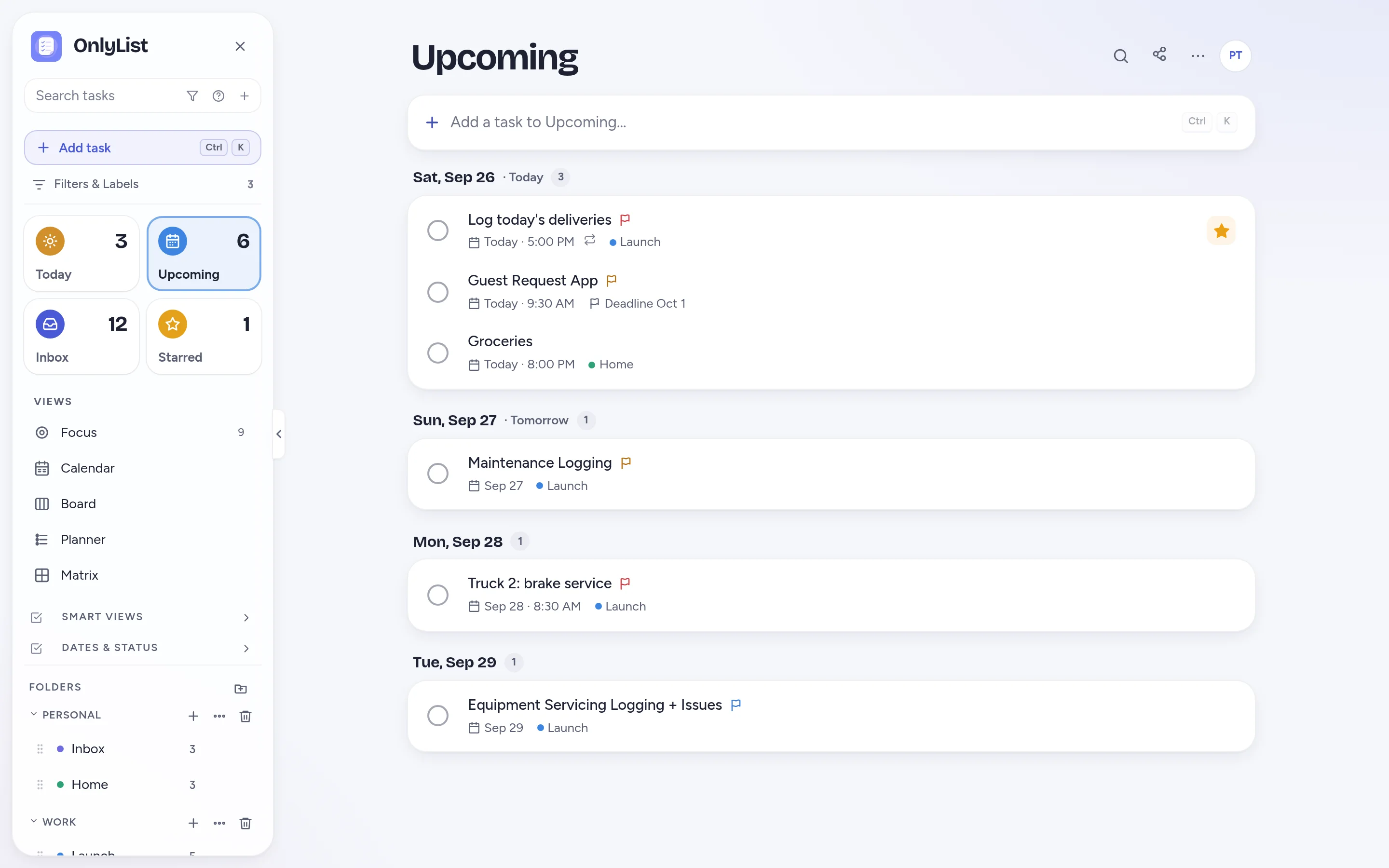
Daily, weekly, monthly, yearly, or every 2 weeks. Repeat from the due date or from when you finish, stop at an end date, and skip one without breaking the series.
- Great for bills, bins, birthdays and plants.
- Upcoming shows what's coming, day by day.
Setting up
Make sure reminders reach you.
- Allow notificationsWhen your browser asks if OnlyList may send notifications, say yes. Reminders then reach you even when the app is closed.
- On iPhone, add it to the home screenOpen myonlylist.com/app in Safari, tap Share, then Add to Home Screen. iPhone only delivers web app notifications this way.
- Pick a reminder timeChoose at the time, a bit before, the morning of or the day before. Turn on Keep reminding for the big ones.
Free: unlimited lists and tasks, reminders, snooze, repeats, the Today list and grid, habits, the Focus timer, search, all 9 color schemes and export. Premium ($2.99 a month or $19.99 a year) adds sync across devices, Timeline, Calendar, Board, Planner and Matrix, shared lists, attachments and daily backup. Compare plans
FAQ
Questions people reasonably ask.
Will my reminders go off when the app is closed?
Yes, once you allow notifications. Reminders reach your phone or computer even when OnlyList is closed. On iPhone, add OnlyList to your home screen first.
Can I snooze a reminder?
Yes. From a notification, snooze for an hour or until tomorrow. From the task itself, snooze to later today, this evening, tomorrow or next week.
Can reminders repeat?
Yes. Repeat daily, weekly, every 2 weeks, monthly or yearly, from the due date or from when you finish, with an optional end date. You can skip a single occurrence.
Are reminders free?
Yes. Reminders, snooze and repeating tasks are all in the free plan.
Does OnlyList work on my phone?
Yes. It runs in any modern browser on your phone, tablet or computer. Add it to your home screen for a full-screen app: in Chrome, choose Install app; on iPhone, open it in Safari, tap Share, then Add to Home Screen. An Android app for Google Play is in testing.
Keep exploring
Other ways to use OnlyList.
Start with one task.
Open OnlyList in your browser, then install it to your home screen. The free plan needs no card and has no ads.
Android: open myonlylist.com/app in Chrome, tap ⋮, then Install app.
iPhone and iPad: open it in Safari, tap Share, then Add to Home Screen.
Computer: in Chrome or Edge, click the install icon in the address bar.