 OnlyList
Calendar task app
Your tasks on a calendar, without the noise.
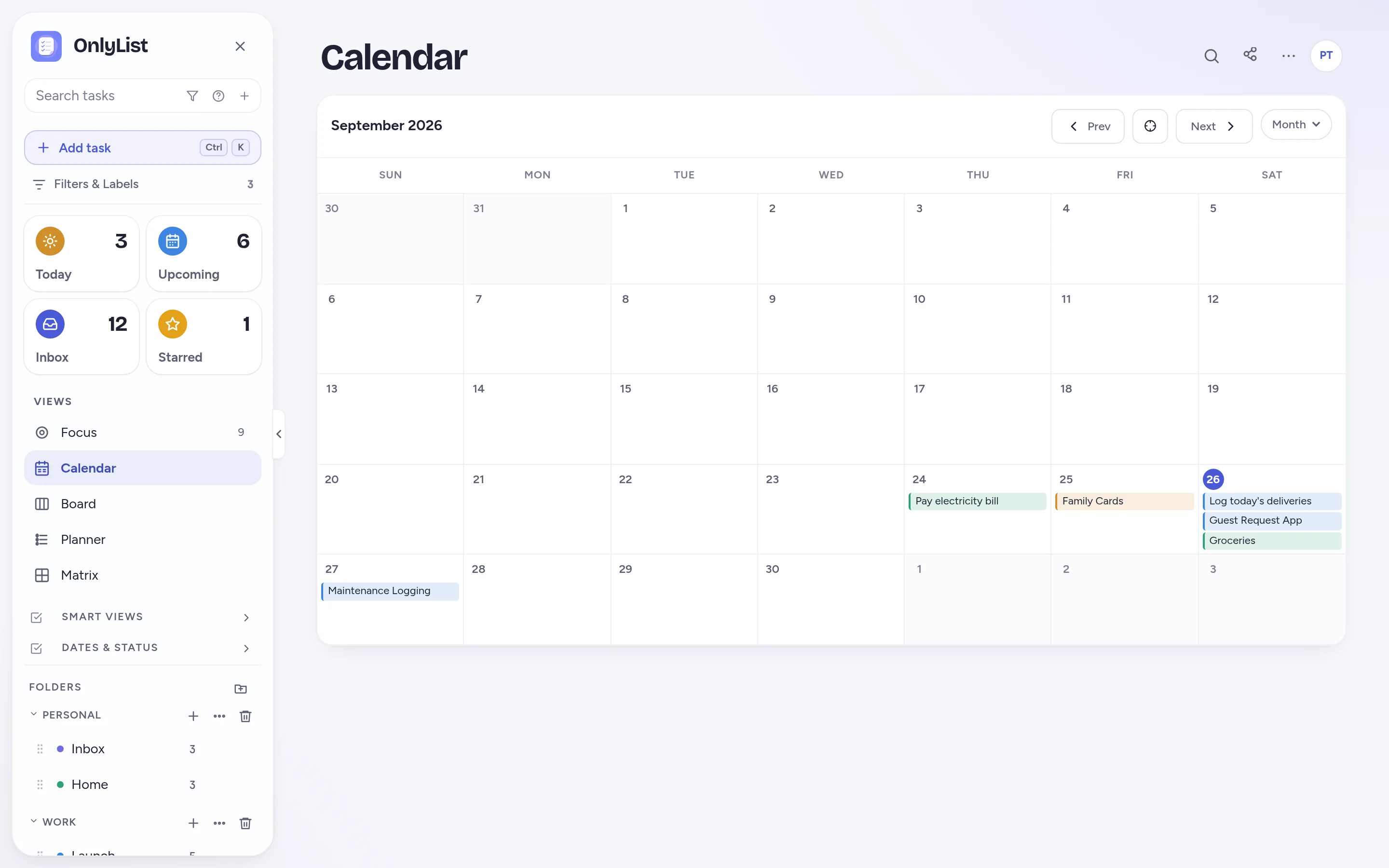
Tasks with a date appear on their day. Switch between day, week and month, drag a task to another date, and keep your list and calendar in sync by default.
Calendar
A calendar made for tasks, not just meetings.
Your calendar app is full of meetings. This one shows the things you need to do, colored by list, on the day you plan to do them.
- Month, week and day layouts.
- Drag a task onto another date to move it.
- Tap a task to open its details without leaving the calendar.
Timeline
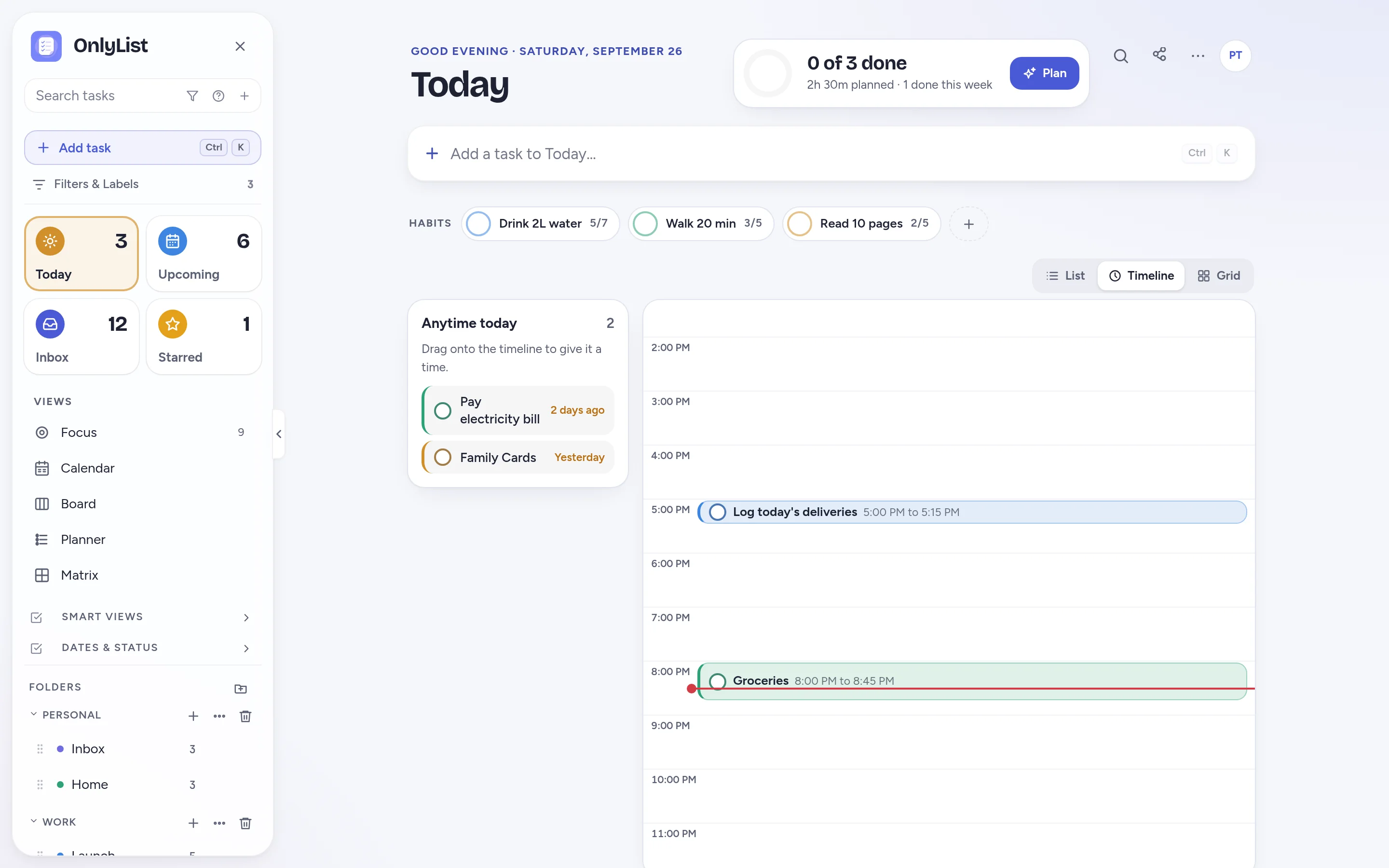
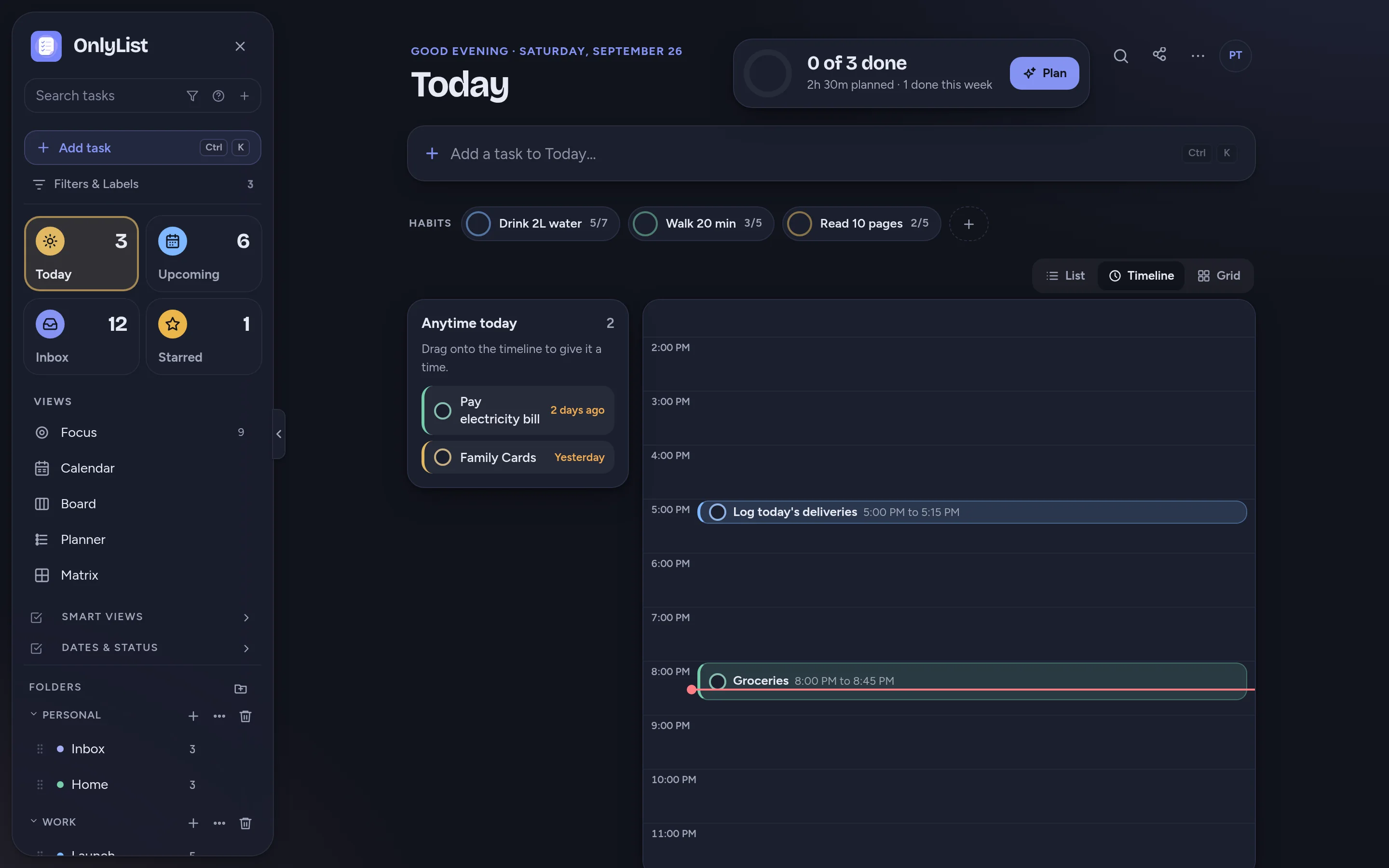
Zoom into today, hour by hour.
Switch Today to Timeline to place tasks at a time. Tasks without a time wait on the side until you drag them in.
- Time estimates become blocks of the right length.
- A red line shows where you are in the day.
Reminders
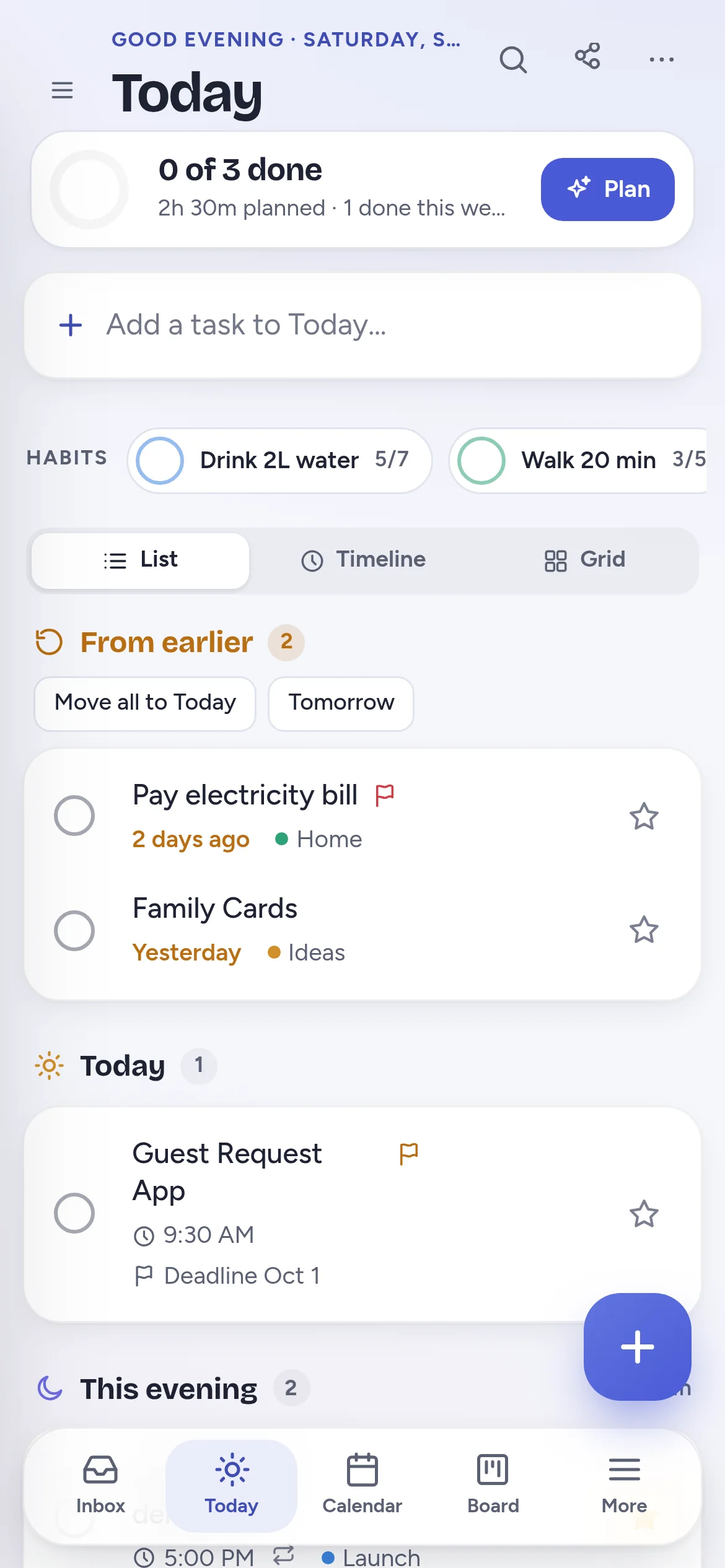
Dates that actually get your attention.
Add a reminder at the time, 15 minutes or an hour before, the morning of, or the day before. Reminders ring even when the app is closed.
- Keep reminding until done, for the tasks that must not slip.
- Repeats every 2 weeks, yearly, or from the day you finish.
Why a task calendar
Why use a task calendar instead of a normal calendar?
Tasks aren't meetings
They can move. A task calendar makes moving them one drag instead of a small negotiation.
One source of truth
The calendar and your lists show the same tasks. Change one and the other follows.
Do date vs deadline
Plan when you'll work on something, and keep its real deadline visible.
Take it with you
Export dated tasks as a calendar file (.ics) to open in other calendar apps.
Free: unlimited lists and tasks, reminders, snooze, repeats, the Today list and grid, habits, the Focus timer, search, all 9 color schemes and export. Premium ($2.99 a month or $19.99 a year) adds sync across devices, Timeline, Calendar, Board, Planner and Matrix, shared lists, attachments and daily backup. Compare plans
FAQ
Questions people reasonably ask.
Can I see tasks in a weekly or monthly calendar?
Yes. The Calendar view has day, week and month layouts. Tasks show on their dates, colored by list.
Can I reschedule tasks by dragging?
Yes. Drag a task onto another day in the calendar and its date updates. In the Planner you can drag between days too.
Does OnlyList import my Google or Outlook calendar?
No. OnlyList doesn't import other calendars. You can export your dated tasks as a calendar file (.ics) to open elsewhere.
Is the calendar free?
The Calendar view is part of Premium, with Timeline, Board, Planner and Matrix. The free plan has Today, Upcoming, reminders and repeats.
Does OnlyList work on my phone?
Yes. It runs in any modern browser on your phone, tablet or computer. Add it to your home screen for a full-screen app: in Chrome, choose Install app; on iPhone, open it in Safari, tap Share, then Add to Home Screen. An Android app for Google Play is in testing.
Keep exploring
Other ways to use OnlyList.
Start with one task.
Open OnlyList in your browser, then install it to your home screen. The free plan needs no card and has no ads.
Android: open myonlylist.com/app in Chrome, tap ⋮, then Install app.
iPhone and iPad: open it in Safari, tap Share, then Add to Home Screen.
Computer: in Chrome or Edge, click the install icon in the address bar.