 OnlyList
Eisenhower matrix app
Sort the important from the merely loud.
The Matrix sorts your open tasks into four boxes: Do first, Schedule, Defer and Drop. It uses what you already set, so there's nothing extra to fill in.
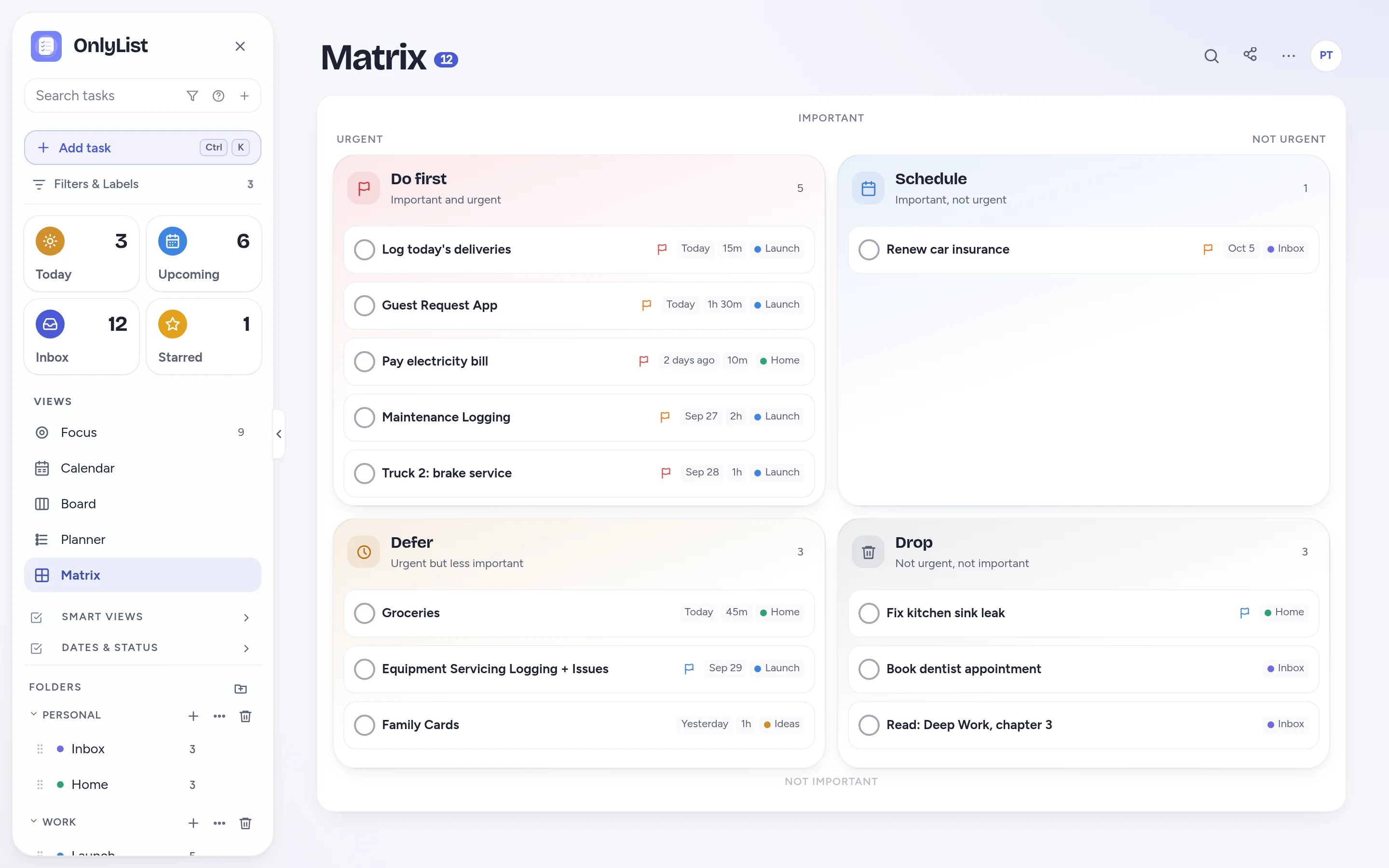
How tasks are placed
How OnlyList places tasks in quadrants.
No manual tagging. The matrix reads each task's priority, star and date.
- Important: starred, pinned, or priority 1 or 2.
- Urgent: due today, tomorrow, or already overdue.
- Do first is both. Schedule is important only. Defer is urgent only. Drop is neither.
Drag to decide
Change your mind with one drag.
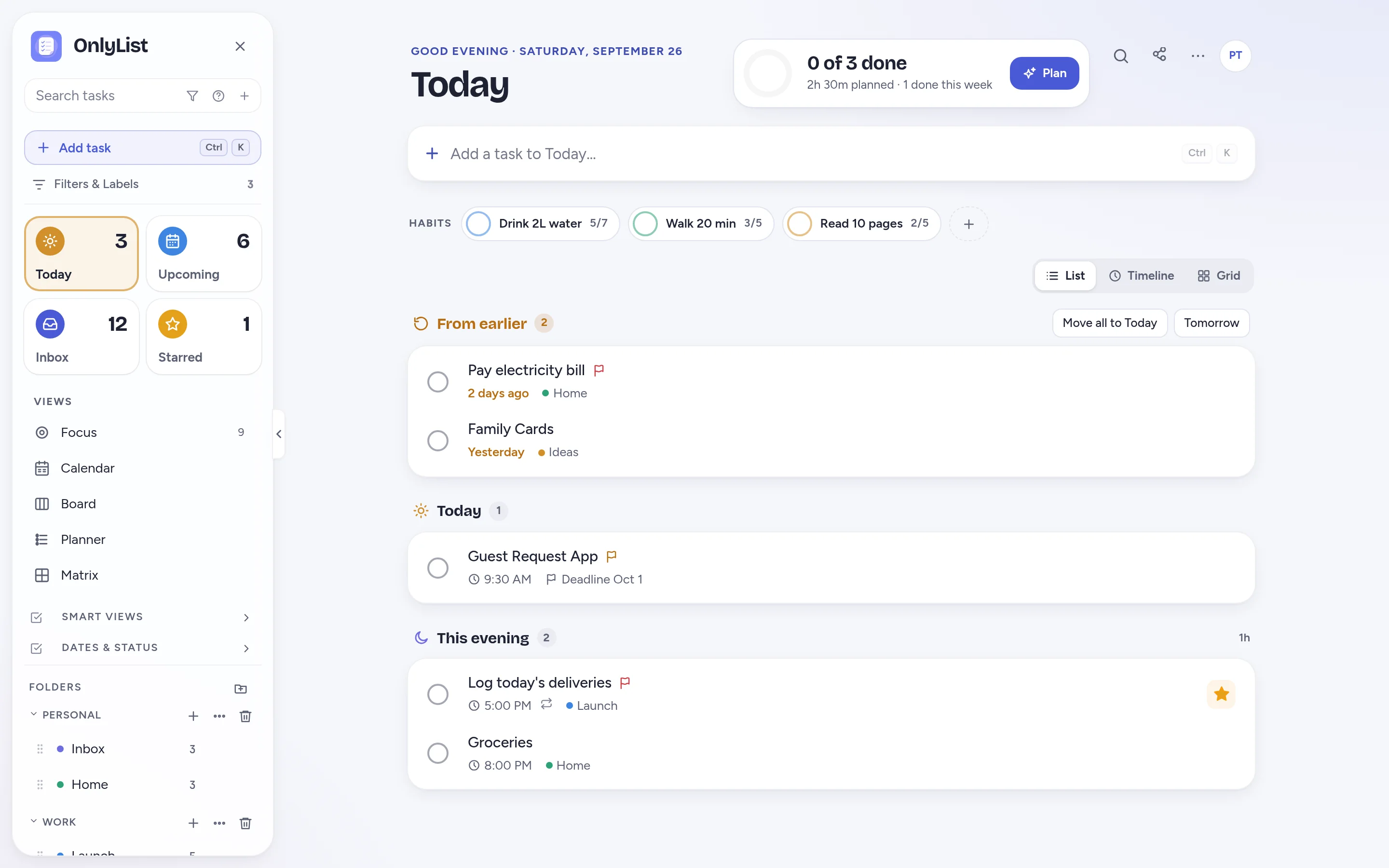
Drag a task to another quadrant and OnlyList adjusts its star, priority or date to match. Drop a task in the same quadrant and nothing changes.
- Tasks keep their list colors and flags.
- Open any task to edit its details in place.
Focus
Then actually do the first thing.
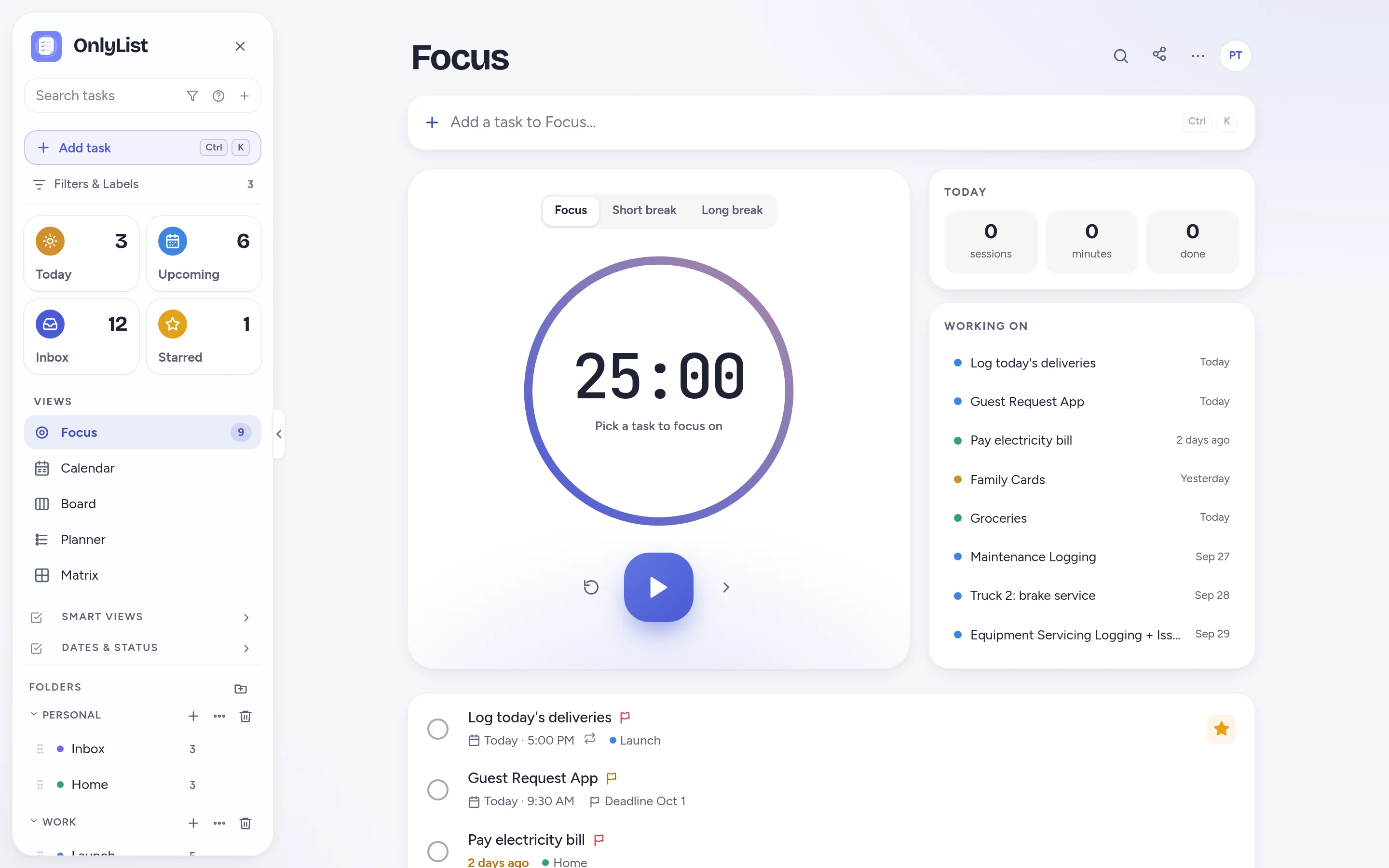
Pick a task from Do first, start the Focus timer, and let everything else wait for 25 minutes.
- The Focus timer is free.
- Short and long breaks built in.
Beyond the matrix
A priority view connected to the rest of your tasks.
Priorities
Three levels plus none, shown as small colored flags.
Do date and deadline
Plan when to start, and keep the hard deadline in sight.
Reminders
Reminders ring even when the app is closed.
Other views
Board, Planner and Calendar show the same tasks differently.
Free: unlimited lists and tasks, reminders, snooze, repeats, the Today list and grid, habits, the Focus timer, search, all 9 color schemes and export. Premium ($2.99 a month or $19.99 a year) adds sync across devices, Timeline, Calendar, Board, Planner and Matrix, shared lists, attachments and daily backup. Compare plans
FAQ
Questions people reasonably ask.
What is the Eisenhower Matrix?
A way to sort tasks by two questions: is it important, and is it urgent? The answers give four boxes: do it now, schedule it, hand it off or defer it, or drop it.
How does OnlyList decide what is important or urgent?
Starred, pinned and priority 1 or 2 tasks count as important. Tasks due by tomorrow, including overdue ones, count as urgent.
Can I move tasks between quadrants?
Yes. Drag a task to another quadrant and its star, priority or date is adjusted to match.
Is the Matrix free?
The Matrix is part of Premium, along with Timeline, Calendar, Board and Planner. Priorities, stars and dates are free.
Does OnlyList work on my phone?
Yes. It runs in any modern browser on your phone, tablet or computer. Add it to your home screen for a full-screen app: in Chrome, choose Install app; on iPhone, open it in Safari, tap Share, then Add to Home Screen. An Android app for Google Play is in testing.
Keep exploring
Other ways to use OnlyList.
Start with one task.
Open OnlyList in your browser, then install it to your home screen. The free plan needs no card and has no ads.
Android: open myonlylist.com/app in Chrome, tap ⋮, then Install app.
iPhone and iPad: open it in Safari, tap Share, then Add to Home Screen.
Computer: in Chrome or Edge, click the install icon in the address bar.